

After call work in CX Cloud
L'agent doit disposer de l'autorisation suivante pour que l'option Demander du travail après l'appel apparaisse dans l'utilitaire d'interaction :
- Conversation > Participant > Synthèse
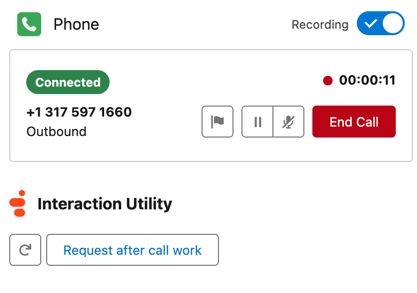
Use After Call Work (ACW) to indicate the outcome of an interaction. If your administrator has set the after call work codes and time for an interaction in a queue, then the After Call Work window in Genesys Cloud CX Utility or the stand-alone component opens automatically when an interaction ends. When your administrator has set the Agent Requested option for after call work option in the corresponding Genesys Cloud queue, you get to select the option to request after call work. In the interaction utility component, the Request after call work option appears.
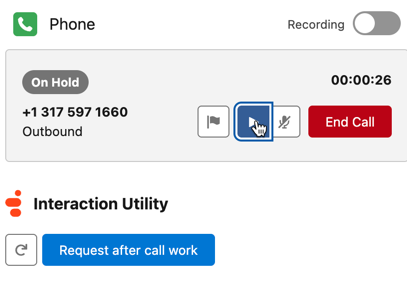
Lorsque vous sélectionnez une option, celle-ci est surlignée en bleu, comme le montre la capture d'écran suivante :
You can either use the Genesys Cloud CX Utility or the after call work stand-alone component to complete the after call work.
Après avoir mis fin à l'interaction, effectuez le travail de suivi de l'appel :
- Recherchez et sélectionnez le code d'enveloppement approprié pour l'appel vocal.
- Dans la case Insérer des notes, ajoutez toute information supplémentaire sur l'interaction.
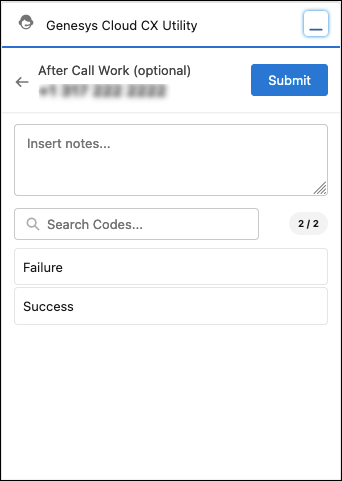
- Pour terminer le travail après l'appel, cliquez sur Submit.
Lorsque vous soumettez le travail après l'appel, les notes sont enregistrées dans le champ Description et le code de synthèse est enregistré dans le champ Résolution de l'appel de l'enregistrement de l'appel vocal dans Salesforce pour la première fois. Par la suite, ne mettez pas à jour les notes dans Salesforce ou Genesys Cloud car elles ne sont pas synchronisées entre elles.
En attente de conclusion dans l'utilitaire Genesys Cloud CX
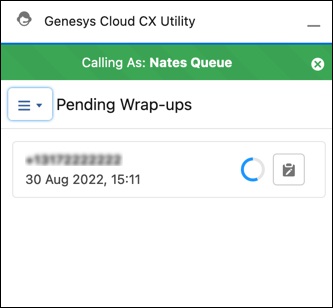
En fonction de l'heure d'expiration définie par votre administrateur pour le récapitulatif, le travail après l'appel s'affiche sous Récapitulatif en attente dans la fenêtre Genesys Cloud CX Utility.
If your administrator has configured and set up the after call work component, the component displays on your Voice Call record page for the interaction, as shown in the following illustration:
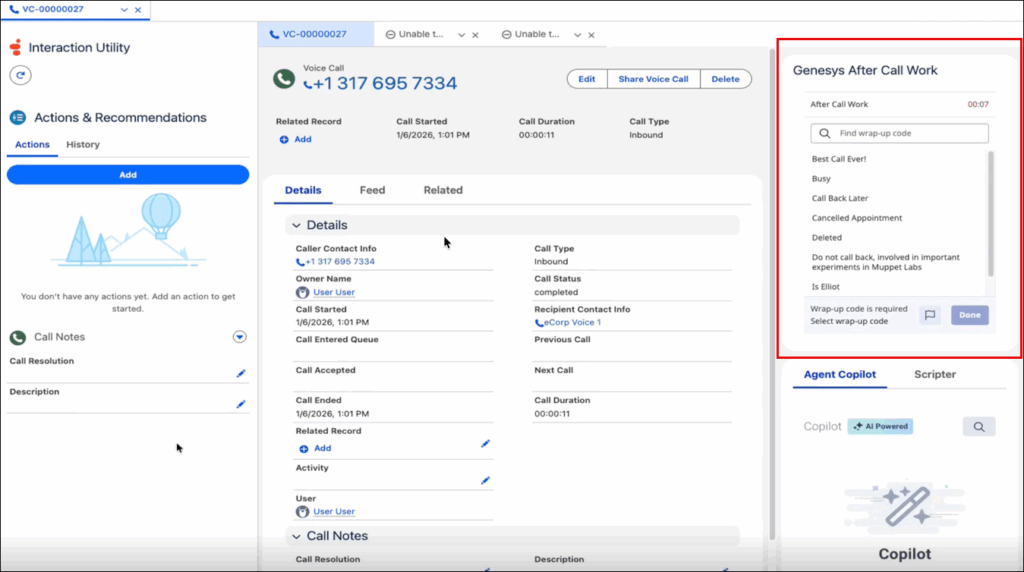
You can now select wrap-up codes, review AI-generated summaries, and track ACW time directly on the Voice Call record page instead of switching to the Genesys Cloud CX Utility. The component clearly shows a timer to help you complete required tasks. To add after call work notes, edit the Description field under the Call Notes section on the Voice call record page, and enter your notes.